Complete Integration
Before proceeding with this implementation flow, please review the Quick Integration section, as it may save you considerable time. Follow this guide to provide your end users with an immersive payment experience in which you control and provide the visual interface.
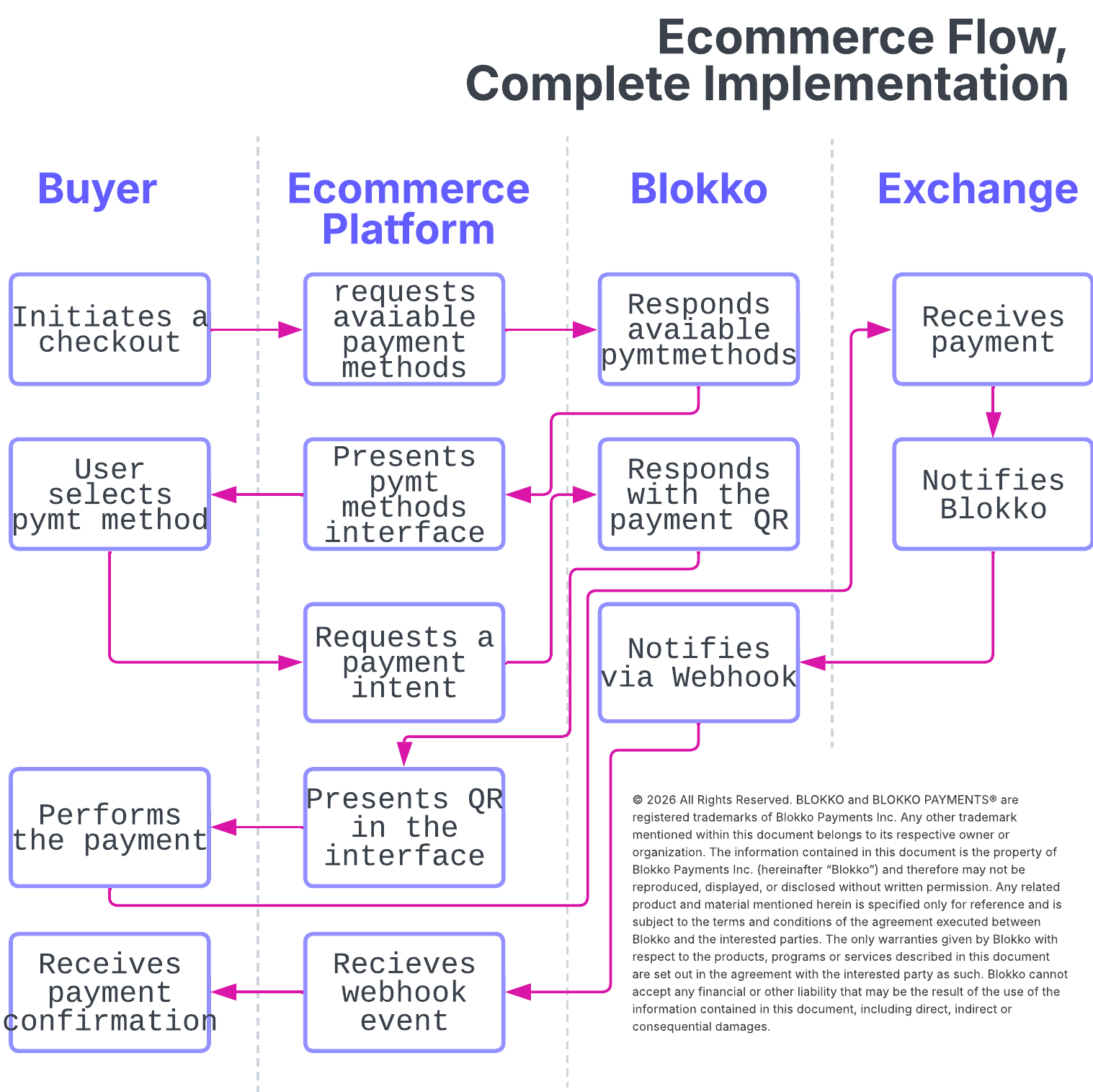
Follow these steps to complete the integration:
- Add a payment button to your checkout page, just as you would for any other payment method, such as credit or debit cards. An example of the payment button is provided at the bottom of this page.
- Once the customer clicks the payment button, you should close the order in your system.
- Call the
/v2/merchants/{merchantId}/payment-methodsendpoint to retrieve the payment methods available to your merchant. The response will return an assortment of payment methods. You may choose whether to display all of them, and a category is provided to help you organize them within your interface. - Once the customer selects a payment method, initiate the payment intent by calling
/v2/payment/intent. - Wait for the webhook event to arrive before displaying the success page to your customer.
For this final step, you may use different strategies. The following are some suggestions:
- The most basic approach is to poll one of the available payment-status endpoints every N seconds.
- The recommended approach is to subscribe the end-user session to a WebSocket topic, wait for our webhook event to arrive, update the payment status, and notify the user through the WebSocket status change.
For the second strategy, use one of the available payment-status endpoints as a fallback to verify the transaction status.
Webhook events are signed using an HMAC-SHA256 signature, allowing you to validate the authenticity of each message. Refer to our HMAC-SHA256 documentation to learn how to implement this validation, and use the HMAC-256 Playground to test your signature generation before going live.
Please note that we are not responsible for webhook notifications whose authenticity you fail or choose not to validate.

Right click and save this image to use it as a payment button.
Updated about 1 month ago